
Protect Your Data: How to Safely Reset Your Device Without Losing Important Information
In today’s digitally saturated world, our devices serve as repositories for an ever-growing volume of personal and professional information. From cherished photographs and vital work documents to sensitive financial details and personal communications, the data we entrust to our smartphones, tablets, and computers is often irreplaceable. When the time comes to reset a device, whether due to performance issues, a planned upgrade, or preparing it for sale or donation, the prospect of losing this precious information can be daunting. However, with proper preparation and understanding, it is entirely possible to safeguard your data and ensure a smooth transition, leaving you with peace of mind and your essential information intact. This comprehensive guide aims to equip you with the knowledge and practical steps necessary to navigate the device reset process safely and effectively.
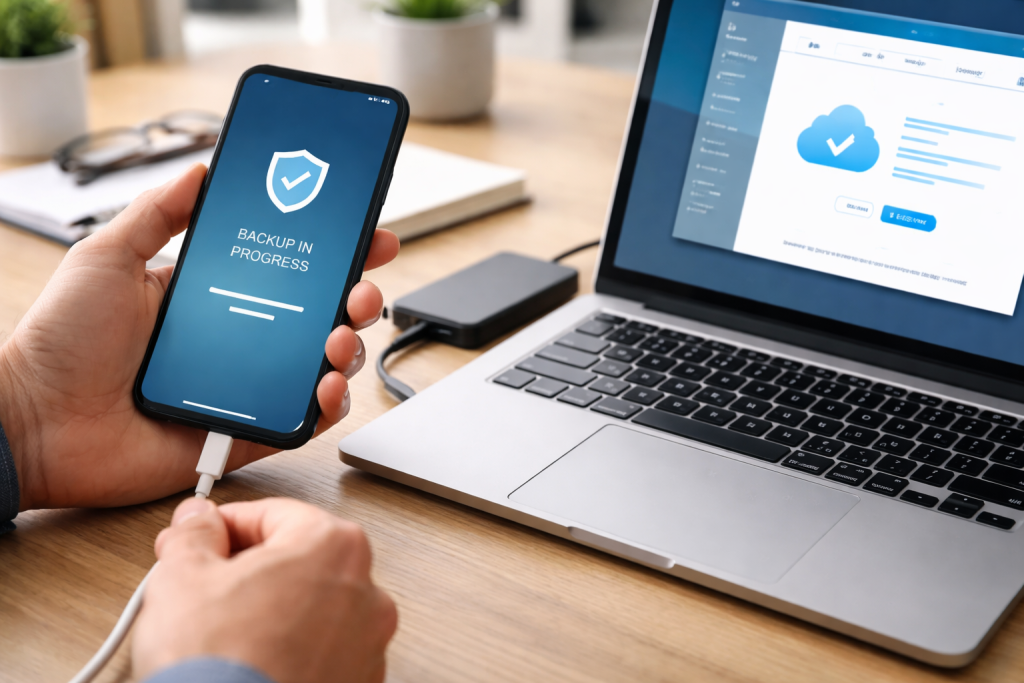
Before embarking on any device reset, the absolute cornerstone of data protection is a comprehensive backup. This process ensures that a duplicate or a copy of your digital life is stored safely elsewhere, making it readily available for restoration after the reset is complete. Without a robust backup, a factory reset or even a system restore can permanently erase your valuable data, leading to significant distress and potential irreversible loss. Understanding the importance of this initial step cannot be overstated, as it forms the foundation of a secure and successful device reset.
Contents
- 0.1 Understanding Your Backup Options
- 0.2 What to Back Up: A Comprehensive Checklist
- 0.3 Verifying Your Backup
- 0.4 Factory Reset (Erase All Content and Settings)
- 0.5 System Restore or Reset (Keeping Personal Files)
- 0.6 Network Settings Reset
- 0.7 All Settings Reset
- 0.8 Preparing Your Device for the Reset
- 0.9 Initiating and Completing the Reset Process
- 0.10 Post-Reset Procedures
- 0.11 Understanding Activation Locks and Device Security
- 0.12 Protecting Against Malware and Viruses
- 0.13 Securely Erasing Data on Sale or Donation
- 0.14 The Restoration Process Explained
- 0.15 What to Expect After Restoration
- 0.16 Regular Backups as a Routine
- 0.17 Keeping Your Software Up-to-Date
- 0.18 Practicing Strong Password Hygiene
- 0.19 Forgetting to Back Up Your Data
- 0.20 Not Signing Out of Accounts
- 0.21 Misunderstanding the Type of Reset
- 0.22 Interrupting the Reset Process
- 0.23 Not Verifying Your Backup
- 1 FAQs
- 1.1 1. Why is it important to back up your data before resetting your device?
- 1.2 2. What are the different types of device resets and how do they differ?
- 1.3 3. What are the steps to safely reset your device without losing important information?
- 1.4 4. How can you ensure that your important information is secure during and after a device reset?
- 1.5 5. What are some common mistakes to avoid when resetting your device to protect your data?
Understanding Your Backup Options
The methods available for backing up your data vary depending on the type of device you own and your personal preferences. Each option offers distinct advantages and considerations, and often, a combination of approaches provides the most resilient protection.
Cloud Storage Solutions
Cloud backup services have become incredibly popular due to their convenience and accessibility. Platforms like Google Drive, iCloud, Dropbox, and Microsoft OneDrive allow you to automatically or manually upload a wide range of data, including documents, photos, videos, and contacts, to remote servers. This means your data is stored off-site, protecting it from physical damage to your device or local storage failures. Many services offer a free tier with limited storage, and paid subscriptions provide ample space for extensive backups. The key advantage here is that your data can be accessed from any internet-connected device, making restoration straightforward.
Local Backups
While cloud backups offer off-site protection, local backups provide a secure and often faster alternative for significant data transfers. This typically involves connecting your device to a computer and using specialized software provided by the device manufacturer or third-party applications to create a full backup of your device’s contents. External hard drives or solid-state drives are ideal for storing these local backups, offering substantial storage capacity at a reasonable cost. This method can be particularly useful for large media files or entire system images that might be cumbersome to upload to the cloud.
Device-Specific Backup Tools
Most operating systems and hardware manufacturers provide built-in backup utilities. For Apple devices, iCloud and iTunes (or Finder on newer macOS) offer robust options for backing up iPhones, iPads, and Macs. Android devices often integrate with Google’s backup services, allowing for the restoration of apps, call history, SMS messages, device settings, and contacts to a new device. Familiarizing yourself with your device’s native backup features is essential, as they are often the most seamless and integrated solutions.
What to Back Up: A Comprehensive Checklist
A thorough backup encompasses all aspects of your digital life. Merely backing up photos might leave you without your important documents or app data. Therefore, it’s crucial to be comprehensive.
Personal Files and Documents
This includes all your word processing documents, spreadsheets, presentations, PDFs, and any other personal files you have created or saved. Ensure you back up files from all your regularly used folders, including your Desktop, Documents, Downloads, and Pictures.
Photos and Videos
These are often the most sentimental and irreplaceable parts of our digital lives. Make sure your entire photo and video library is included in your backup. If you use cloud photo services, ensure they are fully synchronized and that you have access to all your albums.
Contacts and Calendar Events
Your contact list and calendar are vital for staying connected and organized. Most cloud services automatically sync these, but it’s wise to verify manual sync or ensure they are included in your device-specific backup.
Application Data and Settings
Some applications store their data and settings in a way that can be backed up. This can include game progress, app-specific preferences, and login information. While not all app data is perfectly restorable, a good backup will attempt to preserve as much as possible.
Messages and Call Logs
Depending on your device and backup method, you may be able to preserve your SMS messages and call history. This can be particularly important for business or personal records.
Verifying Your Backup
A backup is only as good as its verifiability. Simply performing the backup process isn’t enough; you must confirm that the data has been successfully transferred and is accessible.
Checking File Integrity
After the backup is complete, take the time to browse the backup location. If you backed up to a computer, open some of the files to ensure they are not corrupted. For cloud backups, log into your cloud storage account and verify that the files are present and can be downloaded.
Performing a Test Restore (Optional but Recommended)
For critical data, consider performing a small test restore to a different location or device. This will give you absolute confidence that your backup is functional and that you know the restoration process before performing the main reset.
Before you initiate a reset, it’s crucial to understand the different types available and their implications for your data. A misunderstanding here can lead to unintended data loss. Device resets are generally categorized into a few main types, each with a distinct purpose and outcome.
Factory Reset (Erase All Content and Settings)
This is the most comprehensive type of reset. A factory reset, often referred to as erasing all content and settings, returns your device to its original state as if it were brand new, right out of the box. It will wipe all personal data, installed applications, user accounts, and system settings. This is the most recommended option when selling, donating, or returning a device, as it ensures no personal information is left behind for the next user.
System Restore or Reset (Keeping Personal Files)
Some operating systems offer a reset option that allows you to reinstall the operating system while keeping your personal files and documents intact. This can be a great solution for resolving software glitches, performance issues, or removing malware without the hassle of reconfiguring your entire device from scratch. However, it’s important to note that all installed applications will typically be removed. This option is ideal if your primary goal is to fix software problems without losing your personal data.
Network Settings Reset
This type of reset specifically targets your device’s network configurations. It will erase all saved Wi-Fi passwords, Bluetooth pairings, and VPN settings. This is useful if you are experiencing connectivity issues, such as being unable to connect to Wi-Fi or experiencing slow internet speeds, and you suspect a corrupted network configuration. It does not affect your personal files or applications.
All Settings Reset
This reset option reverts all system settings to their default values without deleting your personal files or applications. This can be helpful if you’ve made numerous configuration changes and are experiencing unexpected behavior, or if you want to start fresh with your device’s settings. Similar to a network settings reset, it’s a less destructive option than a factory reset.
With your data safely backed up and a clear understanding of the reset types, you’re ready to begin the reset process. Following these steps carefully will help ensure a smooth and secure operation.
Preparing Your Device for the Reset
Before you even enter the reset menu, there are a few crucial preparation steps to take.
Ensure Sufficient Battery Power
A device shutting down unexpectedly during a reset can lead to data corruption or an incomplete reset, potentially rendering the device unusable. It’s highly recommended to ensure your device is fully charged or connected to a power source throughout the entire reset process.
Sign Out of All Accounts
Before performing a factory reset, it’s vital to sign out of all your accounts, including your Apple ID, Google account, email accounts, and any other cloud services. This is particularly important for devices with activation locks, such as iCloud Activation Lock on iPhones and iPads. If you don’t sign out, the device may ask for the original account credentials after the reset, potentially locking you out.
Remove Any External Storage
If your device has expandable storage, such as an SD card, it’s a good practice to remove it before performing a factory reset. While a factory reset typically targets the internal storage, it’s always better to be safe and ensure no external data is accidentally wiped or interfered with.
Initiating and Completing the Reset Process
The exact steps for initiating a reset will vary depending on your device’s operating system and model.
Locating the Reset Option
On iOS devices, you’ll typically find the reset option under Settings > General > Transfer or Reset [Device]. On Android devices, it’s usually located in Settings > System > Reset options, or a similar path depending on the manufacturer. For Windows PCs, you can access reset options through Settings > Update & Security > Recovery. For macOS, it’s typically done through macOS Recovery.
Selecting the Desired Reset Type
Once you’ve located the reset menu, carefully choose the type of reset you want to perform. If your goal is to completely wipe the device, select the factory reset or “Erase All Content and Settings” option. If you intend to keep your personal files, choose the option that preserves data. Read any prompts and warnings carefully before proceeding.
Following On-Screen Prompts
The device will guide you through the remaining steps. This may involve entering your passcode or password to confirm your identity. The reset process can take some time, depending on the device and the amount of data to be erased. Do not interrupt the process.
Post-Reset Procedures
Once the reset is complete, your device will likely restart.
Initial Setup and Configuration
Upon restarting, your device will be in its factory default state. You will need to go through the initial setup process, including selecting your language, region, and connecting to Wi-Fi. You will then be prompted to set up your device as new or restore from a backup.
Restoring Your Data
This is where your meticulous backup efforts come into play. When prompted, choose the option to restore from a backup. Select the backup you created earlier, whether it’s from iCloud, Google Drive, your computer, or another source. The restoration process will begin, downloading and reinstalling your apps and data. This can also take a significant amount of time, so ensure you have a stable internet connection.
Security isn’t just about backing up; it’s about protecting your data at every stage of the reset. This involves both technical measures and mindful practices.
Understanding Activation Locks and Device Security
Modern devices come with robust security features designed to protect your data even if the device falls into the wrong hands. Activation locks, like Apple’s iCloud Activation Lock, are tied to your Apple ID and prevent anyone from using your device without your credentials, even after a factory reset. Similarly, Android’s Factory Reset Protection (FRP) ties your device to your Google Account.
Disabling Activation Locks Before Resetting
For devices with activation locks, it is imperative to disable them before performing a factory reset. On iOS, go to Settings > [Your Name] > Find My iPhone and toggle it off. You will need your Apple ID password. On Android, ensure you are signed out of your Google Account in Settings > Accounts. If you forget to do this, you may be unable to set up your device after the reset.
Protecting Against Malware and Viruses
Malware can compromise your data and interfere with the reset process. Ensure your device is free of viruses and other malicious software before initiating a reset.
Running Antivirus Scans
If you suspect your device may be infected, run a thorough scan with reputable antivirus or anti-malware software. Remove any threats identified before proceeding with the reset. For mobile devices, use well-regarded apps from your device’s app store.
Securely Erasing Data on Sale or Donation
When you intend to sell or donate your device, a factory reset is essential. However, for maximum security, consider additional steps to ensure data is irrecoverable.
Overwriting Data (for some devices)
While a standard factory reset usually suffices, for extremely sensitive data, some devices offer options to securely erase or overwrite the data multiple times. This makes it significantly more difficult for sophisticated data recovery techniques to extract any residual information. Consult your device’s manual or manufacturer’s website for advanced secure erasure options.
The restoration process is the culmination of your backup efforts. It’s the point where you bring your digital world back to life on your freshly reset device.
The Restoration Process Explained
When you set up your device after a reset and choose to restore from a backup, the device will connect to the chosen backup source and begin downloading and reapplying your saved data.
Restoring from Cloud Backups (iCloud, Google Drive, etc.)
If you utilized cloud storage for your backup, the restoration process will involve signing into the respective cloud account on your device. The system will then present you with available backups, and you’ll select the most recent one. The download and installation will commence, bringing back your apps, settings, photos, and other data. This requires a stable internet connection throughout.
Restoring from Local Backups (iTunes/Finder, PC software)
When restoring from a local backup, you’ll typically connect your device to the computer where the backup is stored. Using the backup software (e.g., iTunes on Windows or Finder on macOS), you’ll select your device and then choose the option to restore from a backup. This process can be faster than cloud restoration if you have a high-speed connection between your device and computer.
What to Expect After Restoration
It’s important to manage your expectations regarding the restoration process.
Reinstalling Applications
While many backups will attempt to reinstall your applications, some may only restore the app data and settings, requiring you to manually re-download the apps from the app store. This is often dependent on how the app developers designed their data storage.
Re-establishing Accounts and Passwords
You will likely need to re-enter the passwords for most of your accounts, including email, social media, and other services. This is a security measure to ensure you are the rightful owner of these accounts.
Syncing Data with Cloud Services
After restoration, your device will begin syncing with various cloud services again, such as photos, contacts, and calendar events. This process may take some time to complete, especially if you have a large amount of data.
The reset process is a crucial event, but continuous attention to data protection is key to long-term digital security. Developing good habits now will prevent future data loss anxieties.
Regular Backups as a Routine
The most effective way to protect your data is to make backups a regular, ingrained habit, not an afterthought.
Automating Your Backups
Many cloud services and backup software allow you to schedule automatic backups. Take advantage of these features to ensure your data is consistently backed up without you having to remember to do it manually. Set up daily or weekly backups, depending on how frequently your data changes.
Diversifying Your Backup Strategy
Relying on a single backup method can be risky. Consider using a combination of cloud and local backups for maximum redundancy. If your cloud provider experiences an outage or your local drive fails, you’ll still have a viable backup.
Keeping Your Software Up-to-Date
Software updates often include critical security patches that protect your device from vulnerabilities exploited by malware.
Importance of Operating System and App Updates
Make it a practice to install operating system updates and application updates as soon as they become available. These updates are designed to fix bugs, improve performance, and strengthen the security of your device and your data.
Practicing Strong Password Hygiene
Weak passwords are a major gateway for unauthorized access to your data. Implement strong password practices.
Using Unique and Complex Passwords
Avoid using easily guessable passwords or reusing the same password across multiple accounts. Employ a mix of uppercase and lowercase letters, numbers, and symbols. Consider using a password manager to generate and store strong, unique passwords for all your online accounts.
Enabling Two-Factor Authentication (2FA)
For an extra layer of security, enable two-factor authentication whenever possible. This requires you to provide a second form of verification, typically a code sent to your phone, in addition to your password. This significantly reduces the risk of unauthorized access even if your password is compromised.
Even with the best intentions, certain missteps can turn a planned reset into a data disaster. Being aware of these common pitfalls can help you navigate the process smoothly.
Forgetting to Back Up Your Data
This is arguably the most fundamental and catastrophic mistake. A factory reset without a prior backup is akin to throwing away your valuables. Always, always back up your data before initiating any kind of reset.
Not Signing Out of Accounts
As mentioned earlier, failing to sign out of essential accounts, especially those with activation locks, can render your device unusable after a reset. Ensure all personal accounts are de-linked.
Misunderstanding the Type of Reset
Selecting the wrong reset option can lead to the unintended deletion of valuable information. Carefully read and understand the descriptions of each reset type before proceeding. If unsure, err on the side of caution and perform a full backup.
Interrupting the Reset Process
During a reset, the device is actively modifying its system files. Interrupting this process, whether by turning off the device, removing the power source, or encountering a power surge, can lead to severe data corruption and potentially an unbootable device. Ensure the device is powered adequately and remains undisturbed.
Not Verifying Your Backup
Assuming your backup was successful without actually checking can be a grave error. Take the time to verify that your backup is complete and accessible. A failed backup is no better than no backup at all.
By following these principles of preparation, understanding, and careful execution, you can confidently reset your device while ensuring that your most cherished and vital information remains safe and accessible. A proactive approach to data backup and security is not just a technical task; it’s an investment in the continuity and security of your digital life.
FAQs
1. Why is it important to back up your data before resetting your device?
It is important to back up your data before resetting your device to ensure that you do not lose any important information such as contacts, photos, documents, and settings. Backing up your data allows you to easily restore it after the reset process is complete.
2. What are the different types of device resets and how do they differ?
There are different types of device resets, including a soft reset, hard reset, and factory reset. A soft reset simply restarts the device, a hard reset clears the device’s memory and reboots it, and a factory reset erases all data and restores the device to its original settings.
3. What are the steps to safely reset your device without losing important information?
To safely reset your device without losing important information, you should first back up your data, then carefully follow the specific reset instructions for your device, and finally ensure that your important information is securely stored before proceeding with the reset.
4. How can you ensure that your important information is secure during and after a device reset?
You can ensure that your important information is secure during and after a device reset by using secure backup methods such as cloud storage, external hard drives, or a computer, and by double-checking that your data has been successfully backed up before initiating the reset.
5. What are some common mistakes to avoid when resetting your device to protect your data?
Common mistakes to avoid when resetting your device to protect your data include not backing up your data before the reset, not double-checking that your data is securely backed up, and not following the specific reset instructions for your device, which can result in data loss.

Welcome to The Tech Instruct, your trusted platform for simple, practical, and beginner-friendly technology learning.