
File Management 101: How to Keep Your Computer Organized and Clutter-Free
File Management 101: How to Keep Your Computer Organized and Clutter-Free
In today’s digital age, our computers have become veritable repositories of our lives, from cherished photos and important documents to work projects and creative endeavors. However, without a systematic approach, this digital abundance can quickly devolve into a chaotic mess, making it difficult to find what you need when you need it. Mastering the art of file management is not just about aesthetics; it’s about efficiency, productivity, and peace of mind. This comprehensive guide will equip you with the knowledge and strategies to transform your cluttered digital landscape into an organized, streamlined, and easily navigable system.
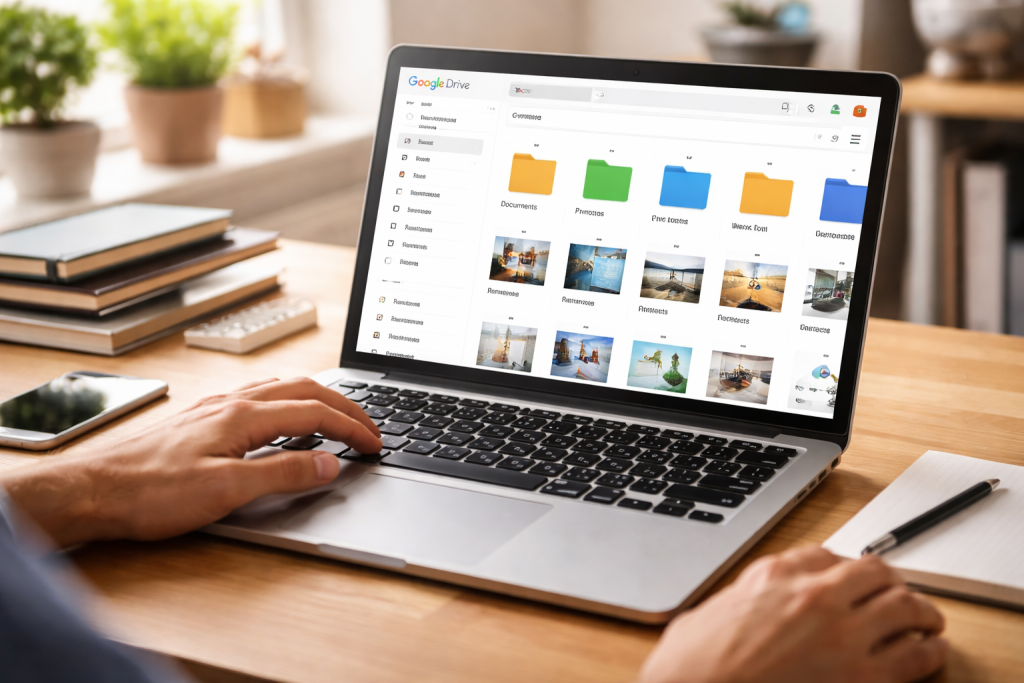
The impact of effective file management extends far beyond simply locating a file. It’s the bedrock of efficient digital living. Imagine the frustration of spending precious minutes, or even hours, searching for a crucial document, only to discover it’s buried under a mountain of similarly named, unsorted files. This wasted time translates directly into reduced productivity, missed deadlines, and unnecessary stress. Furthermore, a well-organized system can prevent data loss. When files are scattered and unmanaged, the likelihood of accidental deletion or overwriting increases. This makes regular backups a more complicated and error-prone process. A clean and organized digital environment also allows for quicker integration of new files, ensuring that your system remains manageable as your digital footprint grows. It fosters a sense of control over your digital assets, empowering you to be more creative and focused on your tasks rather than wrestling with disarray. In essence, good file management is an investment in your digital well-being and your ability to function effectively in the modern world.
Contents
- 0.1 Streamlining Your Workflow
- 0.2 Reducing Digital Stress and Frustration
- 0.3 Safeguarding Your Digital Assets
- 0.4 Embracing a Consistent Folder Structure
- 0.5 Batch Processing and Initial Cleanup
- 0.6 Utilizing Tags and Metadata
- 0.7 Descriptive and Specific Naming Conventions
- 0.8 Employing Consistent Date Formats
- 0.9 Avoiding Special Characters and Long Names
- 0.10 Creating a Top-Level Hierarchy
- 0.11 Developing Logical Subfolder Structures
- 0.12 Regularly Reviewing and Refining Your Structure
- 0.13 Identifying and Archiving Older Files
- 0.14 Implementing a Regular Deletion Routine
- 0.15 Utilizing Disk Cleanup Tools
- 0.16 Understanding Different Backup Methods
- 0.17 Implementing an Automatic Backup Schedule
- 0.18 Considering Data Encryption for Sensitive Information
- 0.19 File Explorer Enhancements and Alternatives
- 0.20 Cloud Storage and Synchronization Services
- 0.21 Specialized File Management Software
- 1 FAQs
- 1.1 What is file management and why is it important?
- 1.2 What are some tips for organizing computer files?
- 1.3 How can I create an effective file naming system?
- 1.4 What are the benefits of utilizing folders and subfolders for organization?
- 1.5 What tools and software are available for efficient file management?
Streamlining Your Workflow
A well-organized computer system directly translates into a smoother and more efficient workflow. When you can instantly access the files you need, the momentum of your tasks is unbroken. This is particularly crucial in professional settings where time is a valuable commodity. Think about the difference between opening a project folder and immediately finding all the relevant documents, or having to embark on a lengthy search through various generic folders. The former allows you to dive straight into your work, while the latter creates an unnecessary bottleneck. This efficiency isn’t limited to work; it applies to personal projects, hobbies, and even simple everyday tasks like paying bills or accessing family photos. The ability to quickly locate and utilize information is a cornerstone of modern productivity.
Reducing Digital Stress and Frustration
The psychological impact of a cluttered digital space cannot be overstated. Constant searching and the inability to find what you’re looking for can lead to significant frustration and stress. This feeling of being overwhelmed by your own files can hinder creativity and make even simple tasks feel daunting. Conversely, a clean and organized system instills a sense of calm and control. Knowing where everything is allows you to approach your digital life with confidence, reducing anxiety and freeing up mental energy for more important matters. It’s like having a well-organized physical workspace; it makes you feel more capable and less likely to procrastinate.
Safeguarding Your Digital Assets
The security and integrity of your digital files are paramount. Effective file management plays a crucial role in this. When files are properly organized, it becomes easier to implement robust backup strategies. You can clearly identify what needs to be backed up and where it’s located. This systematic approach minimizes the risk of accidental data loss due to hardware failure, malware, or user error. Furthermore, a well-organized system can also contribute to digital security by making it easier to identify and remove potentially harmful files or misinformation.
Transforming a disorganized computer into an organized haven requires a strategic and consistent approach. It’s not a one-time cleanup; it’s an ongoing practice. The following principles and techniques will guide you in establishing and maintaining a clutter-free digital environment.
Embracing a Consistent Folder Structure
The foundation of any well-organized system is a logical and consistent folder structure. Before you even begin moving files, take a moment to conceptualize how you want to categorize your digital life. Think about the major areas of your computer usage. Are you primarily using your computer for work, personal projects, and entertainment? This initial strategic thinking will inform the top-level folders you create. Avoid overly complex or deeply nested structures initially; start with broad categories and drill down as needed. The key is to create a system that makes intuitive sense to you and facilitates easy navigation.
Batch Processing and Initial Cleanup
When embarking on a file organization journey for the first time, it’s often best to tackle the task in manageable batches. Instead of trying to organize everything at once, choose a specific area, such as your “Downloads” folder or your “Documents” folder, and dedicate a set amount of time to cleaning it up. This “batch processing” approach prevents overwhelm and allows you to see tangible progress, which can be highly motivating. During these cleanup sessions, don’t be afraid to be ruthless. Delete anything you no longer need, archive old projects, and move files to their appropriate new homes.
Utilizing Tags and Metadata
Beyond the hierarchical structure of folders, modern operating systems offer powerful tools like tags and metadata that can significantly enhance file organization. Tags are keywords or labels that you can assign to files, allowing you to categorize them in multiple ways simultaneously. For example, a single document could be tagged with “Project X,” “Urgent,” and “Client A.” This enables you to find files based on various criteria, even if they reside in different folders. Metadata, on the other hand, is information embedded within a file itself, such as creation date, author, or keywords. Learning to leverage these features can unlock a new level of searchability and organization.
The way you name your files is as crucial as how you store them. A consistent and descriptive file naming convention is the backbone of efficient retrieval. Without it, even the most meticulously structured folder system can become confusing. The goal is to create names that are self-explanatory, allowing you to understand the file’s content at a glance without having to open it.
Descriptive and Specific Naming Conventions
When naming a file, aim for clarity and specificity. Instead of generic names like “Document1.docx” or “Image.jpg,” opt for names that convey essential information. Consider incorporating keywords that describe the content, the date of creation or modification, and any relevant project or client identifiers. For instance, a project proposal could be named “ProjectX_Proposal_V2_2023-10-27.docx.” This naming system provides a wealth of information right in the file name itself, making it easy to sort and locate.
Employing Consistent Date Formats
The use of dates in file names is incredibly useful for tracking versions and understanding chronological order. However, inconsistency in date formatting can lead to sorting errors. It’s best to adopt a standardized date format, such as YYYY-MM-DD (e.g., 2023-10-27). This ISO 8601 format ensures that files are sorted chronologically and consistently, regardless of your operating system’s regional settings. Prefixing your file names with the date ensures that files are automatically sorted by date, which is often the most logical way to organize them.
Avoiding Special Characters and Long Names
While it might be tempting to use a wide range of characters to make file names unique, it’s generally advisable to stick to alphanumeric characters (letters and numbers) and common separators like hyphens (-) or underscores (_). Special characters can sometimes cause compatibility issues across different software or operating systems. Similarly, excessively long file names can be truncated or difficult to read, especially in file explorer views with limited space. Strive for conciseness while still maintaining descriptiveness. A good rule of thumb is to be as detailed as necessary without being verbose.
The hierarchical structure of folders and subfolders is the most fundamental aspect of computer file organization. It allows you to create a logical and intuitive arrangement for your digital assets, ensuring that everything has its designated place. The key is to build a structure that mirrors your real-world organization and workflow.
Creating a Top-Level Hierarchy
Begin by establishing a clear set of top-level folders that represent the major categories of your digital life. Common examples include “Documents,” “Pictures,” “Videos,” “Music,” “Projects,” “Work,” and “Personal.” This initial broad categorization acts as the foundation upon which you will build your entire organizational system. Resist the urge to create too many top-level folders; a manageable number will prevent complexity. The goal is to provide distinct containers for different types of content.
Developing Logical Subfolder Structures
Once your top-level folders are in place, the next step is to create subfolders within them to further refine your organization. The subfolder structure should be logical and reflect how you naturally group and access information. For instance, within your “Documents” folder, you might create subfolders for “Work Projects,” “Personal Finance,” “Resumes,” and “Education.” Within “Work Projects,” you could then create further subfolders for individual projects, clients, or years. The depth of your subfolder hierarchy should be guided by the complexity of your needs; aim for a structure that is deep enough to be informative but not so deep that navigation becomes cumbersome.
Regularly Reviewing and Refining Your Structure
The beauty of digital organization is its adaptability. As your needs and usage patterns evolve, so too should your folder structure. It’s beneficial to schedule regular reviews of your organizational system, perhaps quarterly or semi-annually. During these reviews, assess whether your current structure is still serving you effectively. Are there folders that are consistently overflowing? Are there new categories of information that need to be added? Are there old folders that are no longer relevant? Don’t hesitate to rename, move, or even delete folders to ensure your system remains optimized and efficient. This iterative process of review and refinement is crucial for long-term success.
A significant aspect of maintaining an organized and clutter-free computer is the regular practice of managing and deleting files that are no longer needed. Clutter accumulates over time, and without proactive cleanup, it can quickly overwhelm your system, slowing down performance and making it harder to find important data.
Identifying and Archiving Older Files
Not all files need to be permanently deleted. Many older documents, completed projects, or irrelevant drafts can be moved to an archive. Consider creating a dedicated “Archive” folder or a series of dated archive folders. This keeps your primary working directories lean and efficient while ensuring that important historical data is still accessible if needed. Archiving is a excellent way to declutter without losing potentially valuable information.
Implementing a Regular Deletion Routine
Make it a habit to regularly go through your files and delete anything that has served its purpose. This includes temporary files, duplicate downloads, old drafts of documents, and any other data that is no longer required. Schedule dedicated time for this task, perhaps weekly or after completing a significant project. A consistent cleanup routine prevents the buildup of digital junk, which can significantly impact your computer’s performance and storage space. Consider emptying your recycle bin regularly to reclaim that storage space.
Utilizing Disk Cleanup Tools
Most operating systems come equipped with built-in disk cleanup utilities. These tools can automatically scan your computer for temporary files, system error logs, and other types of unnecessary data that can be safely deleted. While these tools are not a substitute for manual file management, they can be incredibly helpful in automating the removal of common clutter. Exploring and utilizing these built-in functionalities can save you time and effort in keeping your system clean.
Even the most meticulously organized computer is vulnerable to data loss. Therefore, a robust backup and protection strategy is not an optional add-on; it’s an essential component of responsible digital file management. Losing important files can be catastrophic, both personally and professionally, making proactive measures absolutely vital.
Understanding Different Backup Methods
There are several ways to back up your files, each with its own advantages. Cloud backup services, such as Dropbox, Google Drive, or OneDrive, offer automatic synchronization and offsite storage, making them convenient and secure. External hard drives provide a tangible backup solution that you control directly. Some users opt for Network Attached Storage (NAS) devices for centralized home or office backups. Understanding the different methods and their associated costs and benefits will help you choose the best approach for your needs. It’s often recommended to employ a combination of methods for redundancy, often referred to as the 3-2-1 backup rule: three copies of your data, on two different types of media, with one copy offsite.
Implementing an Automatic Backup Schedule
Manual backups are prone to being forgotten. The most effective approach is to implement an automatic backup schedule. Most cloud backup services and many backup software programs allow you to set recurring backups, ensuring that your data is consistently protected without any manual intervention on your part. This proactive approach offers peace of mind, knowing that your valuable files are being saved regularly.
Considering Data Encryption for Sensitive Information
When backing up sensitive personal or business data, encryption is a crucial layer of protection. Encryption scrambles your data, making it unreadable to anyone who does not have the decryption key. Many backup solutions offer built-in encryption options. If you are handling particularly sensitive information, such as financial records or personal identification, ensure that your backup method includes robust encryption to safeguard against unauthorized access.
While manual organization is fundamental, a range of software tools can significantly enhance your file management capabilities, automating repetitive tasks, improving searchability, and offering advanced organizational features. Leveraging these tools can transform your file management from a chore into a streamlined process.
File Explorer Enhancements and Alternatives
Your operating system’s built-in file explorer is a powerful tool, but there are many third-party applications that offer enhanced functionality. These include advanced search capabilities, batch renaming tools, file comparison utilities, and more intuitive navigation interfaces. Exploring these alternatives can provide a more efficient and user-friendly experience for managing your files. Some popular options allow for dual-pane browsing, tabbed interfaces, and even advanced filtering and sorting options that go beyond the standard offerings.
Cloud Storage and Synchronization Services
Cloud storage services have revolutionized file management by providing accessible storage and automatic synchronization across multiple devices. Services like Google Drive, Dropbox, and Microsoft OneDrive allow you to store your files online, access them from anywhere, and automatically update them across your computers, smartphones, and tablets. This not only facilitates organization but also serves as a robust backup solution. The seamless integration of these services into your workflow can significantly improve accessibility and reduce the risk of data silos.
Specialized File Management Software
Beyond general file explorers and cloud services, there are specialized software solutions designed to address specific file management needs. These can include tools for managing large media libraries, organizing research papers, handling complex project documentation, or even automating file archiving and categorization based on predefined rules. Identifying the specific challenges you face in file management can lead you to discover niche software that offers targeted solutions to optimize your workflow and ensure your digital assets are always in order.
FAQs
What is file management and why is it important?
File management is the process of organizing, storing, and managing computer files. It is important because it helps users easily locate and access their files, reduces clutter and confusion, and improves overall productivity and efficiency.
What are some tips for organizing computer files?
Some tips for organizing computer files include creating an effective file naming system, utilizing folders and subfolders for organization, managing and deleting unnecessary files, and backing up and protecting important files.
How can I create an effective file naming system?
An effective file naming system involves using clear and descriptive names, including dates or version numbers when applicable, and avoiding special characters or spaces. This helps users quickly identify and locate specific files.
What are the benefits of utilizing folders and subfolders for organization?
Utilizing folders and subfolders helps users categorize and group related files together, making it easier to navigate and find specific files. This hierarchical structure also helps reduce clutter and keeps the computer organized.
What tools and software are available for efficient file management?
There are various tools and software available for efficient file management, including file organization apps, cloud storage services, and backup solutions. These tools can help users streamline their file management process and protect their important files.

Welcome to The Tech Instruct, your trusted platform for simple, practical, and beginner-friendly technology learning.