
Maximize Your Device’s Potential: A Complete Guide to Performance Optimization
In today’s fast-paced digital world, our devices are extensions of ourselves, gateways to information, entertainment, and productivity. Yet, over time, even the most powerful smartphones, tablets, and computers can succumb to a noticeable slowdown. This isn’t an inevitable decline, but rather a call to action – an opportunity to unlock their full potential through thoughtful performance optimization. Understanding the intricate workings of your device and implementing strategic adjustments can transform a sluggish experience into a seamlessly responsive one.
Contents
- 0.1 Understanding Your Device’s Performance
- 0.2 Identifying Common Performance Issues
- 0.3 Tips for Optimizing Device Performance
- 0.4 Utilizing Built-in Performance Tools
- 0.5 Managing Storage and Memory
- 0.6 Enhancing Battery Life
- 0.7 Monitoring and Maintaining Performance Over Time
- 1 FAQs
- 1.1 1. What is performance optimization for devices?
- 1.2 2. What are common performance issues that can affect devices?
- 1.3 3. What are some tips for optimizing device performance?
- 1.4 4. How can built-in performance tools help in optimizing device performance?
- 1.5 5. What are some strategies for monitoring and maintaining device performance over time?
Understanding Your Device’s Performance
Before we delve into optimization strategies, it’s crucial to grasp the fundamental components that dictate your device’s speed and efficiency. Think of it as the engine, fuel, and lubricants of a high-performance vehicle.
The Core Components of Performance
Central to every device’s operation are its processor (CPU), random access memory (RAM), and storage (hard drive or solid-state drive). The CPU is the brain, executing instructions and performing calculations. A faster CPU generally translates to quicker application launches and smoother multitasking. RAM acts as your device’s short-term memory, holding data that applications are actively using. Insufficient RAM can lead to frequent slowdowns as the device constantly swaps data between RAM and slower storage. Finally, storage is where all your applications, files, and operating system reside. The speed at which data can be read from and written to storage significantly impacts boot times, application loading, and file transfers. Understanding the specifications of these components in your device – their clock speeds, capacities, and types – provides valuable insight into its inherent capabilities and potential bottlenecks.
The Role of Operating System and Software
Beyond the hardware, the operating system (OS) and the software you install play a pivotal role in performance. The OS manages all hardware and software resources, and its efficiency directly impacts overall system responsiveness. Bloated or outdated operating systems can consume excessive resources, leaving less for your applications. Similarly, the applications themselves contribute significantly. Resource-intensive applications, poorly optimized software, or a multitude of background processes can collectively bog down even the most powerful hardware. The interaction between hardware, OS, and software creates a complex ecosystem where every element influences the perceived performance.
Identifying Common Performance Issues
Recognizing the symptoms of a struggling device is the first step towards effective optimization. These issues often manifest as frustrations, interrupting workflow and diminishing the user experience.
Sluggishness and Unresponsiveness
The most obvious signs of performance degradation are general sluggishness and unresponsiveness. This can present as applications taking an eternity to launch, menu navigation feeling choppy, or the device freezing intermittently. Tasks that once felt instantaneous now involve noticeable delays, leading to a constant sense of waiting. This often indicates a struggle with CPU or RAM, where the device is laboring to keep up with current demands.
Frequent Crashes and Errors
Another clear indicator of performance problems is the prevalence of application crashes, system errors, or even unexpected device restarts. While individual software bugs can cause isolated incidents, a pattern of frequent crashes across various applications suggests a deeper system issue. This could stem from memory leaks, corrupted system files, or conflicts between applications vying for the same resources. These errors not only disrupt productivity but can also lead to data loss if not addressed.
Excessive Battery Drain and Overheating
Performance issues aren’t always limited to speed. A sudden and unexplained increase in battery drain, coupled with the device feeling unusually warm to the touch, often points to background processes consuming excessive resources. Apps running in the background without your knowledge, or a perpetually struggling system, can keep your CPU and other components working overtime, leading to increased power consumption and heat generation. This not only shortens your device’s lifespan but also creates an uncomfortable user experience.
Tips for Optimizing Device Performance
Once you understand the underlying causes, a proactive approach to optimization can yield significant improvements. These tips encompass a range of strategies from software adjustments to mindful usage.
Regular Software Updates and Maintenance
Keeping your operating system and all installed applications up to date is paramount. Software updates often include performance enhancements, bug fixes, and security patches that contribute to a smoother and more secure experience. Developers constantly refine their software, and neglecting updates means missing out on these critical improvements. Furthermore, performing regular maintenance tasks, such as clearing temporary files and defragmenting your hard drive (if applicable), can prevent the accumulation of digital clutter that clogs up your system.
Managing Background Processes and Startup Programs
Many applications are configured to launch automatically when your device starts or to run continuously in the background, consuming valuable resources even when not actively in use. Reviewing and disabling unnecessary startup programs can dramatically reduce boot times and free up RAM. Similarly, identifying and closing background applications that are not essential can immediately improve responsiveness. This proactive management ensures that your device’s resources are dedicated to the tasks you are actively engaged with.
Optimizing Visual Effects and Animations
Modern operating systems often incorporate visually appealing animations, transparency effects, and other graphical flourishes. While these can enhance the user interface, they also consume CPU and GPU resources. For older or less powerful devices, reducing or disabling some of these visual effects can lead to a noticeable improvement in responsiveness. Trading a slight aesthetic compromise for significant performance gains is often a worthwhile exchange, particularly when dealing with a sluggish system.
Utilizing Built-in Performance Tools
Most operating systems come equipped with a suite of tools designed to help users monitor and manage their device’s performance. Learning to navigate and utilize these tools empowers you to take control.
Task Manager/Activity Monitor Exploration
The Task Manager on Windows and Activity Monitor on macOS are invaluable resources. They provide real-time information about running processes, CPU usage, RAM consumption, disk activity, and network usage. By observing these metrics, you can identify resource-hungry applications that might be contributing to slowdowns. If an application is consistently consuming a high percentage of your CPU or RAM, it might be a candidate for closure, uninstallation, or further investigation.
Disk Cleanup and Defragmentation Utilities
Windows includes a Disk Cleanup utility that helps free up space by removing temporary files, system logs, recycle bin contents, and other unnecessary data. Regular use of this tool can prevent clutter from accumulating. For traditional hard drives, the Disk Defragmenter rearranges fragmented files to improve read and write speeds. While less critical for modern Solid-State Drives (SSDs), it remains a beneficial practice for older systems. macOS has similar built-in tools and often manages optimization automatically, though manual intervention can still be beneficial.
Energy Saver/Power Options Configuration
Both Windows and macOS offer energy-saving or power management options that can be configured to optimize performance or battery life. While “power saving” modes might reduce performance to extend battery life, choosing “high performance” or “balanced” modes can prioritize speed when plugged in. Adjusting these settings based on your usage patterns can fine-tune your device’s behavior. Understanding the trade-offs between power consumption and raw performance allows for intelligent configuration.
Managing Storage and Memory
Efficient management of your device’s storage and memory is fundamental to maintaining optimal performance over time. A cluttered storage drive or an overloaded RAM can cripple even the most powerful hardware.
Freeing Up Disk Space Effectively
Over time, our devices accumulate a vast amount of data – old documents, downloaded files, large media libraries, and uninstalled application remnants. Running low on disk space can significantly impede performance, as the operating system requires free space for temporary files and virtual memory. Regularly reviewing and deleting old or unnecessary files, uninstalling unused applications, and offloading large media files to external storage or cloud services are essential practices. Tools that analyze disk usage can highlight the largest culprits, helping you target areas for cleanup.
Optimizing RAM Usage and Virtual Memory
RAM is a finite resource, and when it runs out, your device starts using virtual memory – a portion of your storage drive that acts as temporary RAM. This “swapping” process is significantly slower than using physical RAM and can lead to major slowdowns. To optimize RAM usage, minimize the number of open applications and browser tabs, close background processes, and consider upgrading your RAM if your device consistently struggles with memory-intensive tasks. Adjusting virtual memory settings (if available and recommended for advanced users) can sometimes alleviate pressure on physical RAM on older systems.
Cloud Storage Integration
Leveraging cloud storage services like Google Drive, Dropbox, or OneDrive can be a game-changer for devices with limited local storage. By storing large files and documents in the cloud, you free up valuable space on your device while still maintaining accessibility. Many cloud services offer integration that makes files appear as if they are stored locally, but only download them when needed, thus reducing the burden on your device’s internal storage. This strategy provides both storage relief and data redundancy.
Enhancing Battery Life
A device that runs out of power quickly isn’t just an inconvenience; it can severely limit its utility. Optimizing battery life often goes hand-in-hand with performance optimization, as reducing resource consumption inherently conserves power.
Adjusting Screen Brightness and Timeout Settings
The screen is often the most significant power consumer on mobile devices and laptops. Reducing screen brightness, especially in well-lit environments, can extend battery life considerably. Similarly, setting a shorter screen timeout period ensures the display turns off quickly when not in use. These simple adjustments can have a surprising impact on your device’s endurance.
Disabling Unnecessary Connectivity Features
Bluetooth, Wi-Fi, GPS, and cellular data, while essential for modern connectivity, constantly draw power even when not actively being used. If you’re not using Bluetooth accessories, temporarily disable Bluetooth. If you’re using Wi-Fi, you might not need cellular data active. Turning off GPS when not navigating and switching to airplane mode in areas with poor signal (where your device constantly searches for a connection) can all contribute to longer battery life.
Identifying Battery-Draining Applications
Just as with performance, some applications are more demanding on your battery than others. Most operating systems provide detailed battery usage statistics, allowing you to identify which apps are the biggest power hogs. If a particular application consistently drains your battery, consider reducing its background activity, adjusting its settings, or finding a more efficient alternative. Understanding these statistics empowers you to make informed decisions about your app usage.
Monitoring and Maintaining Performance Over Time
Optimization isn’t a one-time fix; it’s an ongoing process. Regular monitoring and maintenance are key to ensuring your device remains at its peak performance for years to come.
Regular System Health Checks
Make it a habit to perform periodic system health checks. This includes running built-in diagnostic tools, checking for OS and application updates, and reviewing resource usage. Treating your device’s health like your own, with regular check-ups, can catch minor issues before they escalate into major performance problems.
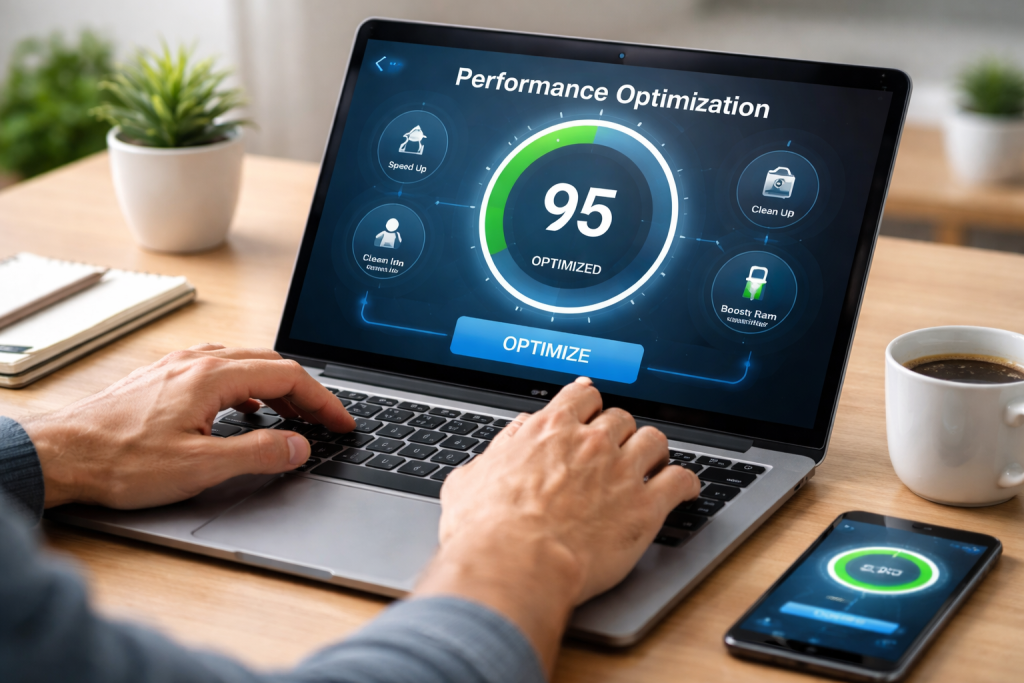
Software for Ongoing Maintenance
Consider utilizing reputable third-party software for more advanced cleaning and optimization tasks, if your operating system doesn’t provide robust enough built-in tools. These tools can often identify and remove junk files, manage startup items, and sometimes even offer insights into hardware health. However, exercise caution and choose well-reviewed, trusted software to avoid installing adware or potentially harmful programs.
Safe Browsing Habits and Security Measures
Finally, maintaining performance also involves protecting your device from threats. Malware, viruses, and adware can severely degrade performance by consuming resources, displaying unwanted ads, and even stealing data. Practicing safe browsing habits—avoiding suspicious links, downloading software only from trusted sources, and using robust antivirus/anti-malware software—is crucial. A secure device is inherently a more efficient and productive device. By following these comprehensive guidelines, you can not only revive a struggling device but also proactively ensure your digital companions remain fast, reliable, and responsive, maximizing their potential throughout their lifespan.
FAQs
1. What is performance optimization for devices?
Performance optimization for devices refers to the process of improving the speed, efficiency, and overall functionality of a device, such as a smartphone, tablet, or computer. This can involve identifying and addressing common performance issues, managing storage and memory, enhancing battery life, and utilizing built-in performance tools to maximize the device’s potential.
2. What are common performance issues that can affect devices?
Common performance issues that can affect devices include slow processing speed, lagging or freezing, overheating, short battery life, and insufficient storage or memory. These issues can impact the overall user experience and productivity of the device.
3. What are some tips for optimizing device performance?
Some tips for optimizing device performance include regularly updating the device’s operating system and apps, minimizing background processes and apps, clearing cache and temporary files, managing storage by deleting unnecessary files and apps, monitoring battery usage, and using built-in performance tools to identify and address any performance issues.
4. How can built-in performance tools help in optimizing device performance?
Built-in performance tools, such as task managers, battery usage monitors, and storage analyzers, can help users identify and address performance issues by providing insights into the device’s resource usage, battery consumption, and storage capacity. These tools can help users make informed decisions about optimizing their device’s performance.
5. What are some strategies for monitoring and maintaining device performance over time?
Strategies for monitoring and maintaining device performance over time include regularly checking for software updates, conducting routine maintenance tasks such as clearing cache and optimizing storage, monitoring battery health and usage patterns, and being mindful of app usage and resource consumption. Additionally, users can consider implementing power-saving modes and adjusting settings to prolong the device’s performance and longevity.

Welcome to The Tech Instruct, your trusted platform for simple, practical, and beginner-friendly technology learning.